Posts

Showing posts with the label GMail

This Week I Learned - Week #52 2021

Image
This Week I Learned -  *  Azure Cognitive Services Translator can transliterate /converts text in one language from one script to another script. * Gmail protects your email by making sure messages you send and receive are authenticated. Unauthenticated messages might be sent to spam. Gmail authenticates messages with SPF (Sender Policy Framework), DKIM (DomainKeys Identified Mail), and DMARC or Domain-based Message Authentication, Reporting, and Conformance.  * SPF specifies which hosts are allowed to send messages from a given domain by creating an SPF record. DKIM allows the sender to electronically sign legitimate emails in a way that can be verified by recipients using a public-key. DMARC helps mail administrators prevent hackers and other attackers from spoofing their organization and domain. Spoofing is a type of attack in which the From address of an email message is forged. A spoofed message appears to be from the impersonated organization or domain. * ...
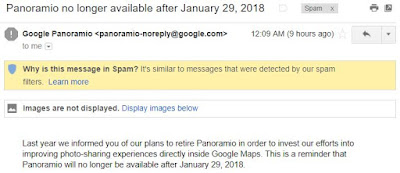
Google Panoramio retirement notification lands in my Gmail Spam

Image
Gmail automatically identifies spam and suspicious emails and marks those emails as spam . Wonder what made Gmail classify a genuine looking Google Panoramio retirement notification as spam?

Transparent overlay image to introduce web site features/elements

Image
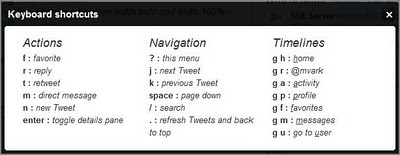
The transparent overlay image to introduce web site features/elements is an interesting UI Pattern to do more with less - a visual explanation is better than reams of notes. Don't know if Gmail was the first popular website to use this idea but I now see a lot of other websites use this kind of an overlay to visually explain new UI elements or features that are added. Gmail used this overlay idea earlier to show Gmail keyboard shortcuts with the "?" keyboard shortcut.

HOW TO make emails that land in Promotions go to the Primary tab in Gmail

Image
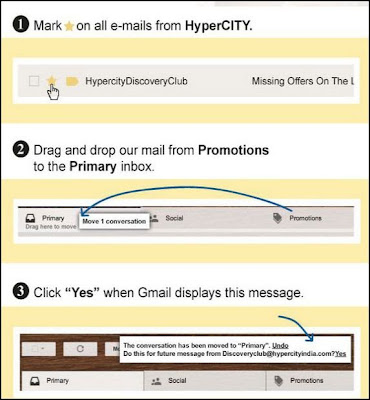
An enterprising supermarket I go to is concerned that I may not be checking the promotional offers that they send to my Gmail account. They sent me steps on how to force Gmail to show emails they send always under the Primary category: To disable the Tabbed Inbox feature click on the settings cog in the upper right-hand corner, go to "Configure Inbox," and uncheck everything except "Primary." This will remove the tabs and bring you back to the old, familiar, one-inboxed interface. To see total count of unread messages (and not just the newest unread emails) click the More link in the left sidebar and you will see all your categories. The categories name will list the number of unread emails beside it.

Get over pesky layout/design changes, use keyboard shorcuts on Twitter, Google products

Image
When popular websites change their layout & design, it takes time for users to get accustomed to it. If you don't like frills and rather like features that get your work done faster, explore keyboard shorcuts that web apps like Twitter, Gmail, Google Reader, Google Docs offer. Just hit the question mark (?) key while you are logged into one of those sites and you will see a popup with a list of all supported hotkeys. While the keyboard shortcut Help popup has been in GMail & Google Reader since a couple of years now , I came to know about the Twitter hotkeys today from Scott Hanselman's blog . I found the choice of letters used by Twitter hotkeys more intuitive than what Google has (how easy is it to correlate Sneak Peak with the letter "h"?) ... so I identified for myself a list of shortcuts that are easily memorable from the much larger list: g then i : Go to Inbox g then s : Go to Starred conversations g then t : Go to Sent messages g then ...

HOW TO delete an email address from GMail auto-complete list without deleting Contact

Image
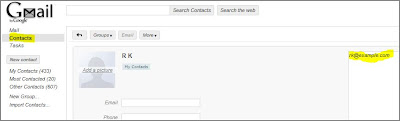
Supposedly friendly features like spell-check & auto-completion can be a bane sometimes. Imagine if your boss & best friend share the same name & you excitedly send a very private message to the boss instead of the friend because GMail cleverly fills the email address while you type a few characters of the name. If such a scenario rings a bell, here is one option to prevent GMail from supplying names you don't want to see in the email auto-complete list that appears while composing a mail. The easy way is to delete the contact. But if you want to prevent an email address from showing up in GMail auto-complete list when you try names in the To:, CC: or BCC: fields, then you can consider moving the email address from the Email field in the form for that Contact to the Notes field. click on image to enlarge

HOW TO make Gmail Labels act like Hotmail Folders

Image
If you apply a Label to an email in Gmail, it will appear under both the Inbox & the Label category chosen. This is unlike in Hotmail where an email can appear only under one Folder category. To address this issue, Gmail introduced a "Move to" option that will place an email under a single Label or category. This option can help in maintaining a clutter-free, cleaner Gmail Inbox but requires manual intervention. A poster on the StackExchange Web Apps forum wanted to know how he can automatically filter emails on arrival so that they are placed under a single category as in Hotmail. Here are the steps - 1. Click on the "Create a Filter" link that's next to search box in Gmail 2. As we want the filter to act upon ALL emails that are recieved, set the To: textbox to your own email address & click on the "Next Step" button 3. Choose the first option to Skip the Inbox alongwith "Apply the label:" option to move an incoming ema...

Free Web-based TO-DO list tools/Task Managers

Image
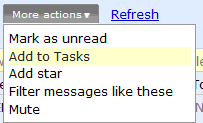
If you need a free web-based TO-DO list tool/Task Manager to stay organized, there are a bunch to choose from - Ta-da List Todoist Voo2do Remember the Milk Toodledo Producteev Good Todo Checkvist Paprika Springpad Todo.ly     GMail Tasks The Toodledo site has a nice features comparison chart that explains typical functionalities offered by these tools. Knowing about these can help you find the best-fit for your needs. I've been using the Tasks feature within GMail for quite sometime as a seperate account is not required. I only recently noticed that a new GMail Tasks entry can be created for an email by clicking the "More Actions" button in the Inbox header and selecting the "Add to tasks" option for an email that needs to be tracked as a task. Also see: Free OCR Tools Free ASP.NET based CMS 90