Posts

Showing posts with the label HOWTO

HOW TO Hide Data URI Base64 Images in Firefox Without Extensions - Using userContent.css

Image
If an image on a site is flashy, animated, and distracting, and you inspect it only to see this as its HTML source: src="data:image/webp;base64,UklGRiQAAABXRU..." There is no image file to block. That's a base64 image embedded directly in the page. You can still hide it in Firefox with no extensions, using a built-in feature called userContent.css . What really is a Base64 Image? Normally, an image is a file. Your browser downloads logo.png from a server. A base64 image is different. The image data is converted to a long text string and pasted directly into the HTML. Instead of this: <img src="/images/logo.png"> You get this: <img src="data:image/webp;base64,UklGRiQAAABXRUJQ..."> Sites do this to load a small icon a bit faster, or to hide tracking pixels, or to inline ads without a separate file request. The downside is you can’t block it like a normal file. It’s not a URL you can block in your hosts file. It’s baked into the page itself. B...

HOW TO Download Open Food Facts Data for Any Country Using Google Colab and Push It to GitHub

Image
Open Food Facts has data on 4.6+ million food products worldwide. There are multiple ways to access that data but the simplest way to get a subset of the data with chosen parameters is to  download it as a CSV file  through the website's search interface. But if you need entire data for one country, you can filter the  7.64 GB file  (size at the time of writing) hosted on Hugging Face as there are no natively available exports dedicated to specific countries currently . Hugging Face acts as a CDN for large ML datasets — it not only stores the full Parquet file but also handles versioning, caching, and fast global downloads. This guide co-written with Meta AI shows you how to use Google Colab to filter the dataset for just one country, add direct product links, and save the result to a public GitHub repo. Takes < 30 minutes total based on your familiarity with these tools & file size. No software installs needed. What you’ll end up with: A CSV like india_pr...

HOW TO link directly to a specific word on a webpage with Scroll to Text Fragment feature

Image
Did you know you can link directly to a specific word on a webpage and have the browser automatically scroll down and highlight it? It’s called Scroll to Text Fragment, and it's a game-changer for sharing quotes, data, or proof.  This is especially useful when the content you want to link to doesn't have a standard HTML anchor (like #heading). This feature lets you link directly to any specific word or text block on a webpage, highlighting it for the user automatically. I was amused to find that  La Opala Crockery is 100% Vegetarian  and it proudly sports on its packaging the green dot logo that's typically used by food products. They also mention this claim on their blog in a long article. I wanted to share the link on a forum that mentions the exact sentence so that readers can jump to the specific point. Here’s how the link can be constructed to highlight "100% vegetarian" - https://www.laopala.in/blog/what-sets-laopala-cup-set-apart #:~:text=100% vegetarian Th...

HOW TO Copy Markdown to Word and Keep Formatting

Image
If you directly paste raw Markdown syntax (like bold or # Heading), Word treats it as plain text. To get properly styled text (headings, bold, lists, tables), you need to convert or render the Markdown first. Here are some ways to maintain formatting when copying Markdown content into Microsoft Word: 1. The Preview / Rich Text Method  If you use a Markdown editor (such as VS Code, Obsidian, Typora, or Joplin), you can use its rendered preview to copy formatted text. Open your Markdown file in your editor. Toggle the Preview Mode (in VS Code , press Ctrl + Shift + V or Cmd + Shift + V). Select and highlight the rendered text in the preview pane. Copy it (Ctrl + C) and paste it directly into Microsoft Word (Ctrl + V). Word will recognize it as Rich Text, converting headers, lists, and bold text perfectly. 2. Using an Online Converter (Quickest for one-offs) If you don't use a dedicated Markdown editor, you can let a web browser do the heavy lifting: Copy your raw Markdown text. Paste...

HOW TO Add a Backup Image in HTML When the Main Image Fails to Load

Image
In HTML, an image can use a backup source with the onerror event. The browser first tries to load the main image from src. If that image is missing, blocked, or fails to load, onerror runs and replaces it with a fallback image.  <img   src="actual-image.jpg"   alt="Product image"   onerror="this.onerror=null; this.src='backup-image.jpg';" > The JavaScript code  this.onerror=null   prevents an infinite loop if the backup image also fails. That prevents an endless loop if the backup image also fails. Without it, the browser could keep triggering onerror again and again. This technique is useful for product images, profile photos, brand logos, or any place where a missing image should show a placeholder instead of a broken image icon. For instance, this Dynamic Dummy Image Generator can be used to generate placeholder images of desired dimensions. For multiple responsive image options, use <picture>, but that is for format/viewport fallb...

HOW TO Optimize Token Usage in GitHub Copilot

Image
GitHub Copilot is moving to usage‑based billing on June 1, 2026, where token consumption (input, output, cached) directly affects costs. To optimize tokens, you need to reduce unnecessary context, use caching, and structure prompts efficiently. 1 2 3 4 5 How Copilot Uses Tokens Input tokens → what you send (code, prompts, context). Output tokens → what Copilot generates. Cached tokens → reused context (cheaper than new input). Context loading (files, repo, history) often consumes 80–90% of tokens, not the generated code itself. 5 Practical Strategies to Optimize Token Usage 1. Control Context Aggressively Avoid opening large/unrelated files while prompting. Limit selection scope before asking Copilot. Exclude build, log, and generated files at the enterprise level (e.g., /target/**, *.class, *.xml). 4 2. Break Tasks into Micro‑Operations ❌ Bad: “Refactor entire microservice.” ✅ Better: “Refactor this method to use reactive pattern.” Smaller scope = fewer files scanned = fewer tok...

HOW TO use the Read Aloud Feature in Microsoft Edge with custom content

Image
An Edge user reported on Microsoft Q&A that the Read Aloud feature is not working with PDFs and therefore came up with this workaround - Select all the text (Ctrl+A) and copy it (Ctrl+C) from the PDF. Open a new tab and paste (Ctrl+V) the text into an online editor, such as https://onlinenotepad.org/notepad  (uses Web Storage API to automatically save your notes). Use the "Read Aloud" feature in this new tab on the web page, since it usually works on regular web page text. The steps in the workaround could be used with any content that you can copy and paste!  Since Microsoft introduced this feature, content can be “Read Aloud” in various voices of your choice and can also be used with non-English content . The same Microsoft Q&A thread also reveals that the Read aloud feature in Microsoft Edge is implemented through the Microsoft Voice (Speech Recognition) component/extension.  If the Read aloud feature is not appearing for you, you can verify if the extens...

HOW TO replace a Lithium Ion Battery in a USB Charging Portable Fan or Similar Electronic Devices

Image
I purchased a BAJAJ Pygmy Mini USB Charging Portable fan in December 2023, and it was very handy during the summer. After not using it for a few months, I tried to turn it on one day, but it wouldn't start.  It was beyond its one-year warranty, and there were no electronics shops in my neighborhood to figure out the issue. I discovered that YouTube videos can be a great resource to see if others have faced the same problem and found a solution. I came across a great video on YouTube that showed me how to fix and revive the fan. It turned out that it just needed a new rechargeable lithium-ion battery. Perplexity offered a great explanation about the ICR-18650-800mAh battery type used in the fan. ICR: Indicates lithium-ion chemistry with cobalt (LiCoO₂). 18650 cells are a standard size widely used in everything from flashlights to laptops and e-bikes. The battery size is 18mm diameter, 65mm length (cylindrical format). It comes in a variety of capacities (measured in mAh or milliamp...

HOW TO View Large CSV File From A GitHub Repo Without Downloading It Locally

Image
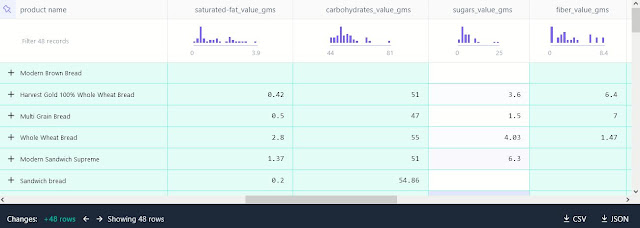
Here are quite a few ways to view large CSVs from a GitHub repo without downloading them locally -  1) Flat Viewer is a free online viewer for CSV, JSON, and other tabular files stored in public GitHub repos — it displays them in a sortable, filterable table without you having to download them. The FlatGithub URL format is: https://flatgithub.com/OWNER/REPO?filename=PATH_TO_FILE If your file is: https://github.com/ mvark/indiafoodstats/blob/main/Brands/Amul.csv The FlatGithub link will be: https://flatgithub.com/ mvark/indiafoodstats/blob/main/Brands/Amul.csv What you can do with Flat Viewer - View the CSV as a table (no GitHub size preview limit) Sort columns Search in the dataset Download the filtered view as CSV or JSON 2) GitHub + Raw + CSV Explorer Go to your CSV in GitHub Click Raw Copy the URL (it will look like https://raw.githubusercontent.com/.../file.csv) Go to CSV Explorer  (requires sign up) Import the data using Raw CSV file  3)  Through your own D...

HOW TO Copy Only Visible Cells from Google Sheets to Excel

Image
When you copy rows in Google Sheets, even if columns are hidden, the default behavior is to copy all the data, including what's in the hidden columns. Pasting this directly into Excel will usually bring over everything. As Google Sheets doesn't have a direct "copy visible cells only" option like Excel, a quick way is to use an OCR tool like ABBYY Screenshot Reader to copy the desired area of the table in Google Sheets and paste just that visible portion to Excel. If there are just a few hidden columns you can manually delete the unwanted columns in Google Sheets to perform a visible-column export to Excel.

HOW TO Geocode Addresses in Bulk with Google Maps

Image
The simplest way to geocode hospital names/addresses and show them on a map is to use Google My Maps - it's free, requires no coding, and handles everything automatically. Go to mymaps.google.com Click "Create a New Map" Click "Import" and upload a CSV file with columns like: Name, Address City Hospital, 123 Main St, Anytown County Medical Center, 456 Oak Ave, Somewhere Google automatically geocodes the addresses and plots them on the map in most cases where the address is partially available. The tool provides an editable data table to fix records which are highlighted in red due to inadequate address details. You can customize colors, add descriptions, and share the map. There are also free & paid tools available to geocode addresses in bulk.

HOW TO Merge PDF Files (without uploading files to any Web Service)

Image
When I had a need to merge 2 PDF files, I turned to my AI assistants to let me know the easiest options that won't require uploading my files to any Web Service. The first option I liked was to use Microsoft Word which I have.  Here are the steps: Go to "Insert" tab in the Text Ribbon Group. Select "Object" and then the "Text from File" option. Select the first PDF.  Repeat the process to insert the second PDF. Arrange the pages as needed. Save the document as a PDF. This technique extracted the text with the same formatting as in the PDF but without the headers and footers. As I wanted the headers, I decided to build my own Python program. ChatGPT generated the following Python script to merge PDFs using the GNU GPL v3 licensed PDF-handling library PyMuPDF (7.1k Stars). Install it using the command before running the script - pip install pymupdf PyMuPDF (also known as fitz) is a powerful and fast  GNU GPL v3 licensed PDF-handling library that support...

HOW TO Manage Web Video Autoplay

Image
If you find videos playing automatically when you visit a webpage annoying, there is a browser setting in most browsers like Edge, Firefox or Vivaldi to block such videos.  Here's how you can enjoy a quieter browsing experience: For Firefox: Open Firefox and click on the menu button (three horizontal lines) in the top-right corner. Select Settings. In the Settings window, click on Privacy & Security in the left-hand menu. Scroll down to the Permissions section. Find the Autoplay setting and click on Settings next to it. Choose Block Audio and Video to stop videos from playing automatically. For Vivaldi: Open Vivaldi and click on the Vivaldi menu (Vivaldi logo) in the top-left corner. Select Settings. In the Settings window, go to the Websites tab. Scroll down to the Media Autoplay section. Choose Block to prevent videos from playing automatically. For Microsoft Edge: Open Edge and click on the menu button (three horizontal dots) in the top-right corner. Select Settings. Click o...

Datasette: The Open-Source Tool for Data Exploration and Publication

Image
Can you imagine sharing a CSV file as URL and letting the recipients view the data through just their browser? Guess what, you can do that & more with  Datasette . Click on this link to see a table showing shelf life of some perishable food items Datasette is a tool created by Simon Willison for exploring and publishing data .  It's a web application that provides a  user interface (UI) for browsing, viewing,  faceting, filtering,  sharing and exploring data .  Datasette allows you to convert CSV files into a database table . Datasette runs on top of SQLite , which is a fast, widely used database where each database is a single file that's easy to copy and back up. Datasette is designed for read-only data, meaning you can't make changes to the data through the Datasette interface. You can run your own SQL queries against the data, which is usually risky for web applications but safe in Datasette because it uses a read-only database. Datasette's JSO...

HOW TO Find All Posts by a User in Slack

Image
Slack's search modifiers are quite similar to Gmail's search operators. To find all posts by a user in Slack, go to the Search Bar: At the top of Slack, you’ll see a search bar (or press Ctrl+F on Windows or Cmd+F on Mac). Use the from: Search Modifier: Type: from:@username Replace @username with the actual Slack handle of the user. Example: from:@ashok_kumar Refine Your Search (Optional): Channel-specific search: from: @username in: #channel-name Keyword-specific search: from:@username keyword Date range: from:@username before:2024-01-01 Press Enter and you’ll see a list of all messages posted by that user. Use Ctrl + / to toggle the Keyboard Shortcuts panel while in GMail the shortcut is the combination of the Shift + / keys. Have a similar pattern makes the user experience better.

HOW TO Selectively Download Multiple Images from a Web Page at Once (Without Browser Extensions)

Image
Firefox offers a way to download multiple images at once through the Tools menu option. Steps to follow in Firefox desktop browser in Windows: Use the Ctrl + I keyboard shortcut directly to bring up the Page Info dialog box or  use Alt+T to invoke the Tools menu and the select Page Info .  In the "Page Info" window, switch to the "Media" tab. Select the images you want to download by holding the Ctrl key while clicking or click on the Select All button. Hit the "Save As" button to download all images at once into a folder of your choice. Chrome and Edge lack a similar GUI option, but images can potentially be downloaded using JavaScript in the Developer Tools Console tab.

HOW TO remove columns from a table using JavaScript in the browser's Developer Console

Image
The Developer Console of your web browser (invoked through the keyboard shortcut F12) allows you to manipulate the Document Object Model (DOM) of any web page that you have loaded in your browser.  Microsoft Edge Developer Console This powerful tool enables you to explore, edit, and experiment with the HTML, CSS, and JavaScript code of any web page, providing you with unprecedented control over the elements that make up a website. Let's say you want to remove the last 2 columns of a 3-column table using JavaScript in the browser's developer console, paste this code & see the columns vanish - // Select all table rows const rows = document.querySelectorAll('table tr'); // Iterate through each row rows.forEach(row => {   // Remove the last cell twice   row.removeChild(row.lastElementChild);   row.removeChild(row.lastElementChild); });

HOW TO Turn Your Mobile Browser into a Barcode Scanner for Web Apps

Image
Smartphone barcode scanners typically require installing a dedicated app. But what if your web app could access the camera and scan codes directly — no app required, just HTML and JavaScript? I tried Minhaz's nifty HTML5 QR Code & Barcode scanner and I'm bowled over by its simplicity. With hundreds of GitHub stars and forks , it's clear I'm not the only one impressed! I adapted Minhaz's sample code into a minimalist web page that scans a product barcode and redirects to Open Food Facts to display its nutrition information. Here's the code : You can also try it out live. Related:  *  Scanapp   *  HOW TO scan a barcode with an Android smartphone camera from a web page

HOW TO Track the Location of a User via JavaScript

Image
ipapi is an IP Location API that can fetch the location of a user - their city, country, Latitude / Longitude based on the IP address it detects from the browser making the function call. It can also get the Time Zone, Calling Code, Currency among other things.  Here's a minimal JavaScript code sample showing Geolocation with IPAPI API - Also see - Public APIs you can use

HOW TO Spot a Bot: Watch for Good Manners

Image
More of my AI co-creations