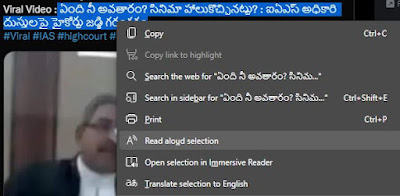
I love the "Read Aloud" feature in Immersive Reader that also appears as "Read aloud selection" in the context menu when you select text. This feature works not only for content in English but also several other world languages including Hindi, Telugu, Tamil, Bengali, Marathi, Urdu. This feature is very beneficial to me while I'm trying to read Indian languages in which I'm not proficient. One issue that has bothered me is that when I need Read Aloud to switch to a different language (say Telugu) than the last used (English), it cannot detect the language. As a result, I have to manually change it and "Read aloud selection" lags in the changeover. Upon selecting text it would be good to have the "Read aloud selection" feature in the context menu detect language and AUTOMATICALLY choose from one of the voices in that language? I have filed this concern on Microsoft's Feeback portal and hope it will be addressed soon. If this is an is...
Grok , the AI model developed by Elon Musk's xAI, can understand when you type Indian languages like Hindi, Telugu, Odia or other Indian regional languages using English letters (like when you type 'namaste' instead of 'नमस्ते'), and it can respond by mixing English with those languages. Grok doesn't necessarily need the native script of these languages. It has natural language processing abilities that extend to multiple languages. This is great innovation because many people in India, especially in online communication, use transliteration. Grok can generate responses that combine English words and phrases with words and phrases from the regional language you used in your input. For example, if you ask a question using a mix of English and Telugu transliteration, Grok might respond with a sentence that includes both English and Telugu words. Check these Hindi, Telugu, Odiya samples - Grok, ab Hindi mein Grōk, ippuḍu telugulō Grok, Oḍiā re This way Grok is more...
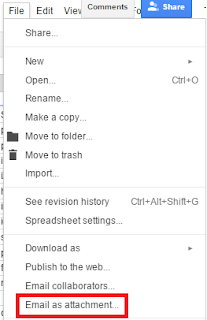
1. Open the document or spreadsheet to be copied to OneDrive, within Google Docs / Drive 2. From the menu, choose File > Email as Attachment... 3. In the dialog box that opens, choose to attach the file as .docx or .xlsx as appropriate and email it to your Microsoft account 4. When the email is opened within Outlook.com , click on the button View in OneDrive to view & save that file in OneDrive to view it in Word Online or Excel Online

Comments
Post a Comment