Posts

Showing posts with the label DevTools

HOW TO remove columns from a table using JavaScript in the browser's Developer Console

Image
The Developer Console of your web browser (invoked through the keyboard shortcut F12) allows you to manipulate the Document Object Model (DOM) of any web page that you have loaded in your browser.  Microsoft Edge Developer Console This powerful tool enables you to explore, edit, and experiment with the HTML, CSS, and JavaScript code of any web page, providing you with unprecedented control over the elements that make up a website. Let's say you want to remove the last 2 columns of a 3-column table using JavaScript in the browser's developer console, paste this code & see the columns vanish - // Select all table rows const rows = document.querySelectorAll('table tr'); // Iterate through each row rows.forEach(row => {   // Remove the last cell twice   row.removeChild(row.lastElementChild);   row.removeChild(row.lastElementChild); });
This Week I Learned - Week #48 2023

Image
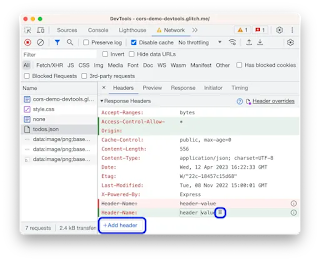
This Week I Learned -  * HTTP/3 builds on the foundations laid by HTTP/2 but introduces significant changes, primarily by shifting from TCP (Transmission Control Protocol) to QUIC (Quick UDP Internet Connections) as the underlying transport protocol. - The Valley of Code * From the Chrome Developer Tools Network panel, you can override HTTP response headers and web content , including XHR and fetch requests, to mock remote resources even if you don't have access to them or the web server. * A VSIX package is a .vsix file that contains one or more Visual Studio extensions, together with the metadata Visual Studio uses to classify and install the extensions.  *  Replicate lets you run machine learning models with a few lines of code, without needing to understand how machine learning works. *  Chatbot Arena lets you chat with any two models among these side-by-side: GPT-3.5: GPT-3.5 by OpenAI GPT-3.5-Turbo-1106: GPT-3.5-Turbo-1106 by OpenAI GPT-4-Turbo: GPT-4-T...

Browser DevTools Tips

A compilation of my browser DevTools tips to aid in web application development: HOW TO turn off internet access for a single browser tab while testing a web application   HOW TO grab text from a HTML list or dropdown with JavaScript & Dev Tools   2 ways to copy tooltip text from a web page   HOW TO disable JavaScript in a browser after the page loads   HOW TO turn off copy-pasting restrictions on web form fields of annoying websites   HOW TO change the look of websites you don't own within your browser  

HOW TO turn off internet access for a single browser tab

Image
Web developers may occasionally have a need to test for scenarios when a web application doesn't have access to the internet. Rather than turn off access to internet completely, it is possible to selectively turn off internet access for a single browser tab just like muting audio playing within a web page. In Chromium-based browsers, open Dev Tools (F12 keyboard shortcut) and within the Network tab change the setting to Offline in the dropdown as shown in the screenshot below. This feature can also be used to conserve bandwidth for web pages that make numerous AJAX calls but can work even while offline.

HOW TO grab text from a HTML list or dropdown with JavaScript & Dev Tools

Image
Developer Tools in Chrome & Edge offers convenient ways to probe the content of web pages. Dev Tools can be invoked for specific pages open within the browser by using the F12 or Ctrl+Shift+I or the browser menu. To extract just the text of a HTML list or dropdown identified by id property value of "country" with JavaScript & Dev Tools, use the following from the Console tab - document.querySelector('#country').innerText textContent returns the text content of all elements, while innerText returns the content of all elements, except for <script> and <style> elements.  Snippets  are a feature of the Sources pane in the Developer Tools. It allows you to write small scripts to execute in the context of the current page using a built-in editor. Common tasks can be scripted and kept in a collection for re-use later.

HOW TO get movie scripts and lyrics of songs - the hard way, from subtitles

Image
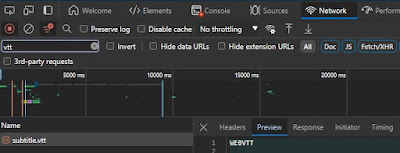
The easy way to get movie scripts and lyrics of songs is to get them straight from the internet through websites dedicated offering them. If a transcript is not available as the movie is new or it does not have a large audience or the quality of the English or desired language subtitles of a foreign language movie isn't up to the mark, here is a way to get it yourself. There are a good number of streaming sites now that provide better subtitles (especially for foreign language moves) than just auto-generated captions to differentiate their premium offerings. Using the Network tab of browser Developer Tools, get the subtitles file while the movie is playing. While there are a variety of subtitle file formats such as srt, stl, scc, ass, ssa, xml, ttml, qt, txt, vtt, dfxp, smi, csv, sub, rt, sbv, the most commonly used file formats preferred by streaming sites have vtt or ttml in the file extension. Once you get hold of the transcript, you'll notice that it has a lot of...

This Week I Learned - Week #6 2020

This Week I Learned - * You can use VNets to provision and manage virtual private networks (VPNs) in Azure and, optionally, link the VNets with other VNets in Azure, or with your on-premises IT infrastructure to create hybrid or cross-premises solutions. Each VNet you create has its own CIDR block and can be linked to other VNets and on-premises networks as long as the CIDR blocks do not overlap. * In addition to the large IOPS capacity of the Premium Disks, Azure Blobcache is a huge value for mission critical OLTP workloads as it brings significant additional high-performance I/O capacity to Azure Virtual Machine for free. Blobcache is a multi-tier caching technology enabled by combining the VM RAM and local SSD. You can host SQL Server data files on premium SSD managed disks with read only Blobcache and leverage extremely high-performance read I/Os that exceed the underlying disk’s capabilities. High scale VMs comes with very large Blobcache sizes that can host the all the data ...

HOW TO prevent AJAX requests within a web page in Chrome after initial load

Image
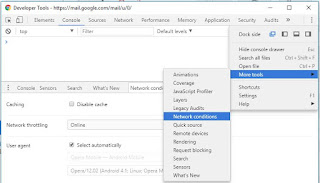
As a web developer, if you see a need to  prevent AJAX requests in Chrome after initial load for a single website, here are the steps  - 1. Use the Ctrl+Shift+I or F12 function key keyboard shortcut in Chrome to invoke Developer Tools 2. Within Dev tools, click on the three vertical dots icon on the right side of the menu, slide down to "More Tools" & select "Network conditions" from the sub menu 3. In the "Network conditions" tab, choose "Offline" in the dropdown against the "Network Throttling" option This way you can conditionally control AJAX requests for a single website without having to use the other blunt alternative of unplugging the network cable to remove all internet access. Also see: HOW TO disable CSS of a web page after it loads in a browser HOW TO disable JavaScript in a browser after the page loads

HOW TO remove unwanted sections of a web page while printing

Image
With Chrome & Internet Explorer, it is possible to print only selected text within a web page . Today, I had need to print a web page without some sections like video and unwanted subtitles. It turns out, with Chrome Developer Tools (keyboard shortcut F12) you can delete the tags representing that section and then print the page. After the web page loads, hit F12 to open the Developer Tools pane and use the Magnifier icon to select the element in the page to delete Within the Developer Tools pane, select the tag containing the content that needs to be deleted and hit the Delete key to remove it from the web page before printing it. Also see:  HOW TO extract sets of pages from a PDF document or web page to a new PDF

2 ways to copy tooltip text from a web page

Image
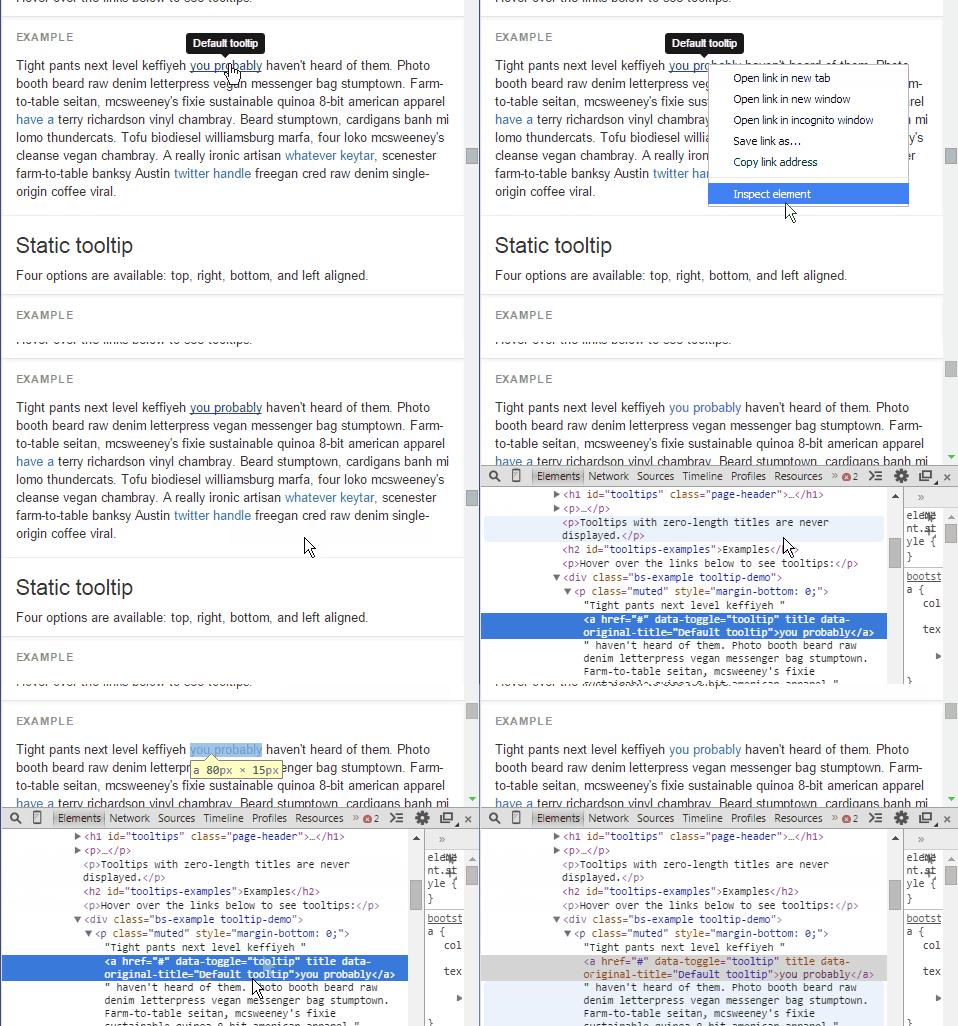
There are times when I've wanted the tool-tip text that appears on hovering over a link or an icon within a web page. The cumbersome way is to select the object that has the tooltip and then use Inspect element option in Chrome (as shown in the animated GIF below) or open Developer Tools (F12 keyboard shortcut in popular browsers) select the element containing the tooltip and grab the desired text from HTML code. Inspect Element option in Chrome I found a simpler option that works with tool-tips on some websites (not all) Select the word before and after the image containing the tooltip and when the tool tip appears, copy the selected text. Copy it from the clipboard and remove the extra words after you paste Select tooltip & its surrounding words, copy & paste I've tested this crude trick in IE 11, Firefox 34 and Chrome 39 (all on Windows) (The animated GIFs were generated using the ScreenToGif open-source tool)

HOW TO disable JavaScript in a browser after the page loads

Image
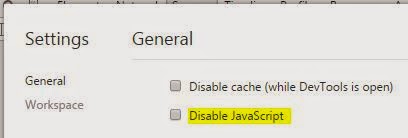
In this age of the Cloud and automatic browser updates, everything is dynamic. You never know when & how a web page you bookmarked might change or where the browser feature you liked has disappeared. The following information was tested in Firefox 33, Chrome 38, Opera 16: Firefox: To disable JavaScript in a browser after the page loads, go to Tools > Web Developer > Inspector  In the panel that opens up, click on the  Settings  gear icon at the top right hand corner. Under Advanced Settings , check the option Disable JavaScript click on  image  to enlarge  Chrome: After a page has loaded in Chrome, hit F12 or use Ctrl+Shift+I keyboard shortcut to invoke Developer Tools . In the panel that opens up, click on the Settings gear icon at the top right hand corner. click on  image  to enlarge Check the option  Disable JavaScript [Update 25-Nov-17]:  There's now a command menu built into DevTools that makes it ...

HOW TO turn off copy-pasting restrictions on web form fields of annoying websites

Image
Some sites disallow pasting values into text boxes within a form. This can be annoying if the content that is to be copied is a very long or is so cryptic that you have to copy it from somewhere else carefully character by character. Some websites implement it using the onpaste event: <input class="yellowtextbox" name="txtCustomerID1" maxlength="10" onpaste="return false;" > Derek Prior has written a bookmarklet that deactivates the functionality that prevents values from being pasted into text fields. Copy the bookmarklet to your browser's bookmarklet bar and click on it while you're on the annoying web page that disables pasting values. His code works for password fields. It can be made to work for input fields like textboxes as well by commenting a couple of lines. var inputs = document.getElementsByTagName('input'); for (var i=0; i < inputs.length; i++) {  // if (inputs[i].getAttribute('type').toLo...

HOW TO change the look of websites you don't own within your browser

Image
You can change the look of websites that you don't own within your browser by hiding or manipulating elements within the web page using Developer Tools (usual keyboard shortcut - F12) that come natively with the browser. The website redesign of a newspaper website that I read takes up nearly a third of the browser real-estate on my 15 inch laptop. As that site supports jQuery, the command to type to hide the header is simple:  $(".header").hide() Using JavaScript & CSS, you can change the original style settings to your own liking. Also see: HOW TO block IFRAME based ads HOW TO block images/image ads originating from a specific domain in Firefox 4 & above Google Adsense spews SVG & Data URI based image ads too to get past blockers

Browser Developer Tools - Tips, Tricks, Documentation

These days all popular browsers - IE, Firefox, Chrome, Opera, Safari, come with Developer Tools that help web developers debug HTML, JavaScript & CSS issues & build better web pages. It's probably the Netscape browser that first started helping developers with the Error Console option that would specify on which line a script error occurred & the possible cause. Firefox inherited that option while Firebug, the Firefox add-on, extended debugging facilities within Firefox to a different level. Firebug's feature-set is so comprehensive, it is possibly the inspiration for all the Developer Tools within popular browsers. Each browser's Dev Tools have some special features & they are continously evolving, thanks to the competition among themselves. The Developer Tools option can be invoked with the keyboard shortcut F12. Here is a compilation of links to the official documentation, tips & tricks for the Developer Tools - Internet Explorer: How to use F...

Browser built-in Web Development tools

Image
The latest versions of new browsers contain powerful Web Development tools that are a boon to web developers. IE 8 has Developer Tools (keyboard shortcut F12), Safari 3 on Windows has a feature called Web Inspector & related Developer utilities accessible from the Develop option in the Menu and in Opera 9.6, Developer Tools (also called Dragonfly ) is available from the Tools menu under Advanced option. Firefox 3 however contains just a Error Console that outputs validation errors and warnings exhibited by CSS and JavaScript connected to a loaded web page and the Firebug extension which offers more elaborate features for the web developer has to be installed explicitly. These tools offer great insight about how well performing the web pages that we have built are. I like the Network Timeline option (part of Web Inspector) in Safari 3 that not only shows a HTTP Waterfall chart but also the sizes of various elements (images, scripts etc) of a web page that we want to inspect. (click ...