Posts

Showing posts with the label Tip

Ctrl + Shift + V Keyboard Shortcut to Paste Plain Text Works in MS Word Now

Image
Ctrl + Shift + V (or Cmd + Shift + V on Mac) is often referred to as "keep text only" or "paste plain text" due to its widespread use in applications such as Microsoft Teams, Word for the web, Google, and Gmail.  The Paste Text Only shortcut is now available in Word for Windows and Word Mac . The keyboard shortcut for Copy Format Painter is Ctrl + Alt + C while Ctrl + Alt + V is for Paste Format Painter Microsoft Word, which has been available since 1983, celebrates its 40th anniversary this year. Over time, industry standards for keyboard shortcuts have evolved, leading to changes from Word's original implementation. Consequently, some of the existing keyboard shortcuts have been updated.
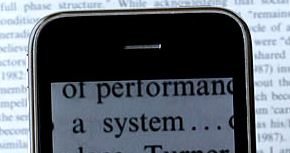
Use Zoom option of your Smartphone Camera to Magnify Fine Print

Image
Have trouble reading fine print? Most packaged products & medicines these days have labels with text so tiny, even those with perfect eyesight can have trouble deciphering what's printed. Rather than buy & carry a magnifying glass to tackle this issue, your own smartphone can be of help. Most smartphone cameras come with a digital zoom option that can come in handy to magnify text printed in a small font size.  After your camera app is on, point your camera at the text you want to read and then pinch two or more fingers together or spread them apart to zoom in or out for desired size . Source: Quora Digital zoom refers to the level of additional magnification achieved through a camera’s internal cropping abilities, by way of software. Optical zoom is the phrase used to indicate the strength of a given lens’ optical magnification. I had almost written off my  Lyf Wind 3 smartphone but after three months of usage, I'm starting to be impressed with the fe...

Search all your ebooks with a keyword by putting them on Google Drive

Image
If you research a lot and have a large collection of ebooks, you can search within those books first  before hitting the Web to search from external resources. If you upload these ebooks onto Google Drive, it will index the content for you. So when you have to search with a keyword, instead of searching each ebook individually you can use the search box within Google Drive. Google Drive was able to fetch results for a specified keyword from an uploaded ebook, even though I didn't ask for it to "Convert text from PDF and image files to Google documents". The "Convert text from PDF and image files to Google documents" feature only works PDF files less than 10MB in size. I found it annoying that Google doesn't validate the file size immediately upon upload but rather accepts the upload & then informs that it cannot convert thereby wasting bandwidth.

HOW TO delete an email address from GMail auto-complete list without deleting Contact

Image
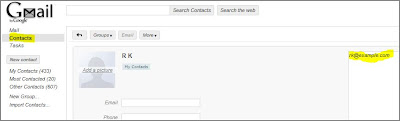
Supposedly friendly features like spell-check & auto-completion can be a bane sometimes. Imagine if your boss & best friend share the same name & you excitedly send a very private message to the boss instead of the friend because GMail cleverly fills the email address while you type a few characters of the name. If such a scenario rings a bell, here is one option to prevent GMail from supplying names you don't want to see in the email auto-complete list that appears while composing a mail. The easy way is to delete the contact. But if you want to prevent an email address from showing up in GMail auto-complete list when you try names in the To:, CC: or BCC: fields, then you can consider moving the email address from the Email field in the form for that Contact to the Notes field. click on image to enlarge

Find Windows System info with Windows key + Pause/Break shortcut

Image
If you need to find hardware details of your Windows PC, like any of the following - Version including Service Pack used Window Experience Index Processor RAM System type (32-bit or 64-bit OS) Computer name, domain & workgroup settings Windows Product Id & whether Windows is activated ... there is a easy keyboard shortcut to reach for this info rather than going for it through Control Panel -  Windows key + Pause/Break I discovered this shortcut in  this Scott Hanselman article that has other great tips for maintaining your PC

Print stylesheet - Best Practices

Image
Using a Print stylesheet is a more convenient way to generate a printer-friendly page than creating such a page through server-side coding. Tim Connell has a nice CSS tip in his article on things to note while coding a stylesheet meant for printer output . At some point, you have probably found yourself reading a printed article when you get to an engrossing section that includes a link for more information. A link that sits there teasing you with its blue underline. Without a mouse or Apple’s latest interfacing doo-​​hicky you have no chance of finding out where that link goes unless you return to the original article on screen. The solution to unclickable links is an easy one to deploy. Use some CSS to print out the location of the link that would otherwise be hidden: #content a:link:after, content a:visited:after { content: ” (“ attr(href) ”) “; font-​​size: 80%; text-​​decoration: none; } As a result of using the above CSS content property setting in the stylesheet mean...

HOW TO show/hide items in the Windows 7 Start menu

Image
Recent Items is a Start menu option that I frequently use to pick files I last worked on. I was surprised to find that option as well as the Run command that developers infrequently need, missing from the Windows 7 Start menu. It turns out that these items are just hidden. You can control showing or hiding any items in the Start menu. To enable  Recent Items or customize how links, icons & menus look & behave in the Start menu, follow these steps: Right click on the Windows 7 Taskbar & select "Properties" from the context menu In the Taskbar & Start Menu Properties dialog box that opens, select the "Start Menu" tab. From the Start Menu tab select the Customize button.  Select or de-select the customization options that you require

HOW TO open your favorite set of websites in new browser tabs at once

Ignore this post if you live on the web & rarely turn off your computer. On the other hand, if you have a favorite set of websites that you open everyday, you can automate the process of starting these sites in multiple tabs within a single Firefox window by using a Windows Batch file. To create such a Windows Batch file, open Notepad or any text editor & paste these lines - @echo off start firefox.exe "stackoverflow.com" "twitter.com"  Change the URLs in the example to your own favorites & save the file with a valid name and a .bat extension. Related:  Setting Browser Tabs to Open at Start-Up

Soft skills & career advice on MS "My Career Roadmap" site

Image
My Career Roadmap is a Microsoft India site that has resources on career advancement.   One of the learning resource there is a 32-part screencast series called “Driving Your Career” by Brian Prince. Each screencast is typically less than 10 minutes in duration and available for download as a WMV & MP3 file. There is no way to directly view it on the site.   I found some of the tips like "Use metaphors to communicate with humans" to be interesting. However, there were some that had profound titles but not equivalent content. Your mileage may vary.   Also see: Top 10 Developer Skills for the Future Building non-technical skills

How Tynt Insight works

Image
If you are looking for tips on a range of useful topics, head to Dummies.com (never mind the name). It is the website for the For Dummies series of plain English reference books. The site features interesting topics from it's books on varied & complex subjects. If you copy & paste any content from there, it will add a link of the URL from where it was copied, at the end of the pasted content. This is achieved by a 12KB JavaScript utility library called Tynt Insight . There is a nice explanation on StackOverflow about how Tynt Insight works - the code activates on events like mouseup, mousedown, and copy (in the startListeningForTraces function) if the user selected a range of text, then it: creates the HTML for an attribution link, plus optional CC license URL appends this HTML to the selection, placing it inside a zero-size <div> (to keep it invisible on-screen) reports what was copied back to Tynt's serv...

Hotmail tip - Move, Delete, Find emails originating from a specific sender with a single click

Image
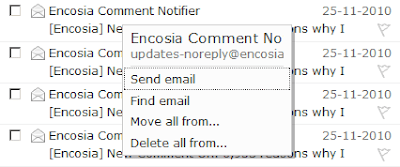
Did you know, a context menu will pop-up after two seconds if you place your mouse on any email within Hotmail With just one click on the context menu, you can then ... reply to that email without explicitly opening it find all emails which have originated from the same email address as that of the selected email move  all emails from the same sender to a specified folder delete  all emails which have originated from the same email address at once This a pretty neat & thoughtful shortcut! If you right click on that email, it opens up a context menu that will let you perform operations on that email alone Also see: Hotmail lets you download attachments as a zip file The One Click GMail Help Layer UI Pattern

Debug JavaScript with Firebug & IE Dev Tools Console commands

Image
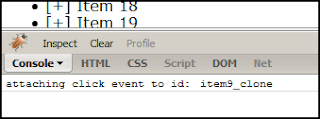
Instead of debugging client-side code with the JavaScript alert command, using the Firefox Firebug extension & Internet Explorer Developer Tools ' (F12 k eyboard shortcut ) Console commands makes debugging less distracting & simpler. The following Console commands work in both IE & Firebug - console.log console.info console.warn console.error console.assert To use either of these in place of an alert in your JS code, make sure you have the Console enabled. Trivia: Firebug was initially written by Joe Hewitt, one of the original Firefox creators . He now works at Facebook.

Prevent identity theft with HTTPS browsing

Image
The grave risk of Internet users unwittingly letting out their private & sometimes confidential details while using unencrypted networks has been brought to focus by at least two startling incidents. Back in May, Google candidly admitted that its Street View data collection cars inadvertently collected and stored " payload data from unencrypted WiFi networks, but not from networks that were encrypted ". More recently a Firefox extension called Firesheep exposed the vulnerability of HTTP browsing in aiding identity spoofing. Analyzing the Firesheep extension, Jeff Atwood makes the following recommendations to protect yourself - We should be very careful how we browse on unencrypted wireless networks. Get in the habit of accessing your web mail through HTTPS Lobby the websites you use to offer HTTPS browsing. Gmail enabled default HTTPS access for everyone in January this year . Hotmail lets you turn it on from your Account settings (go to Hotmail Optio...

Buying a laptop? Check tips from Microsoft

Image
As with other consumer products, there are plenty of options when it comes to laptops. Zeroing in on the one  that's right for you can take a little planning & research. Is a matte finish better than glossy?   How to compare processors? What are the  VGA, DVI, HDMI ports for? Microsoft's has some useful tips, answers & facts on laptops that can help you make a good purchase. If you are a power user constantly on the move, get a laptop with a 14 inch or lower screen size. Smaller screens .. tend to use less power, so you'll gain battery life and reduce the need to pack a power cord for jaunts to the coffee shop, further lightening your load.

Hotmail lets you download attachments as a zip file

Image
Did you know, you can download attachments faster in Hotmail as it packs individual files into a single zip? If the attachments are images, there is an option to view them as a slideshow without having to download those images locally. The slideshow runs using a Silverlight viewer that can also present the images in a full-screen format. Pretty cool! In its last make-over, Hotmail also introduced the Conversation threading feature which can be toggled. This flexibility also probably prompted Gmail to have the facility of switching views .

Adding new Search Provider easiest with Opera

Image
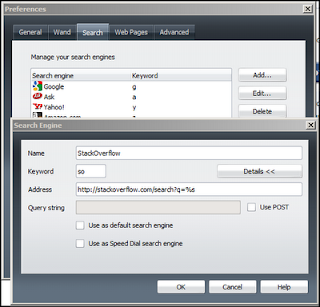
If you search for items frequently on popular sites (like Amazon), it may be easier to use that site's native search right from the browser. All popular browsers allow adding new Search Providers to the search box but it is fastest to do this in Opera, followed by Chrome. IE8 & Firefox require an add-on  to be installed for each search provider which internally uses a standard XML-based OpenSearch Description File . In contrast, Opera lets you quickly configure a search provider yourself for any any site that provides it. Let's see how to search StackOverflow, the programming Q & A site, right from the Opera browser. 1. Go to Tools > Preferences & select the Search tab in the dialog box that opens up. It contains a list of search providers like Google that are already added by default. 2. Click on the Add button & fill in these values - Name: Stack Overflow Keyword: so Address: http://stackoverflow.com/search?q=%s 3. Click on t...

Search from browser address bar in IE, Firefox, Opera

I found out by accident that its not just Chrome that has the combined search and address bar ( Omnibox ) feature - the address bar in IE8, Firefox 3.0 & Opera 9.6 (the version numbers are the ones I've tested on) can also double up as a search box. You can type your search term in the address bar of any of these browsers and press the Enter key to see results from your default search engine. This doesn't work in Safari (version 4.0 on Windows) though. Its good to see browser features getting consistent across the board . Also see: Keyboard shortcuts common to Firefox & IE8 View math calculation results directly in Firefox Search bar

When to use Sleep & Hibernate

Sleep & Hibernate are power-saving options in operating systems like Windows Vista & 7. Sleep preserves whatever you were doing in memory while Hibernate writes your settings and the content of memory to the hard disk (to a hidden system file called Hiberfil.sys located in the root folder of the drive where the operating system is installed) and then completely powers down the system. The size of the Hiberfil.sys file is approximately equal to how much random access memory (RAM) is installed on the computer. Hibernation is more power saving than Sleep but waking from a state of Hibernation takes longer than waking from Sleep. Use the  sleep mode  you won’t be using the computer for a short time and the Hibernate mode when you are not going to use the computer for more than several hours. To disable Hibernation , type powercfg.exe /hibernate off at the command prompt.

Desktop shortcuts for Google Docs document, Outlook New Mail Message

Image
Whether you need a desktop shortcut to a frequently accessed Google Docs document or a quick way to compose a new Outlook mail message, creating one is similar & simple. 1. Right-click the desktop and choose New | Shortcut. 2. In the Create Shortcut dialog box, enter mailto: as the item to launch for the Outlook new mail message or the URL of the Google Docs document for which you need quick access. Click Next. 3. Specify an appropriate shortcut name then click Finish. So the next time your boss asks you to email some report when you have closed Outlook while wrapping up for the day, fire up the Outlook New Mail message shortcut instead of opening Outlook explicitly.

HOW TO perform mouse actions with the keyboard

Image
Computer hardware can go wrong anytime. If your mouse ever conks out, your keyboard can turn a saviour. Mouse Keys is an accessibility feature present in a various Windows versions that can let you control the mouse pointer with the keyboard. You can press left ALT + left SHIFT + NUMLOCK keyboard shortcut to turn on or off  this feature. Once activated, the Mouse Keys icon will appear on the taskbar. You can then navigate in different directions using the numeric keypad's arrow keys. If it feels too slow at first, that's because most of us use the mouse so extensively that it makes us handicapped without it. As this Microsoft Support article informs almost all keys in the numeric keyboard can mimic some feature of the mouse Press the 5 key for a single mouse click and the plus sign key (+) for a double-click. To drag an object, place the pointer on the object and press the INSERT key to begin dragging. Press DELETE to release the object. To drag an o...